From the Cool Cat Teacher Blog by Vicki Davis
Subscribe to the 10 Minute Teacher Podcast and Cool Cat Teacher Talk anywhere you listen to podcasts.
I’ve made it no secret that I love Claude Cowork. This post provides an overview of how it works. I’ll share the screenshots, tips, tricks, and some warnings. As of July 14, 2026, teachers can apply for a year of Claude. Even if you’re not sure if you’ll use it. I recommend doing it. Claude is amazing. (This coming from someone ChatGPT said was in the top 10% of users last year.)
Claude is free for verified K-12 teachers in the United States, and if you sign up by June 30, 2027, you get a full year — along with features built just for the classroom, like teaching skills and curriculum alignment. And this is on top of ChatGPT being free for teachers through June 2028, too.
Also, I have some warnings for using Claude Cowork as that is part of this “free” offering for teachers. (I always put free in quotes because remember, if something is free, you’re the product. And teachers are the best people to train a product on the knowledge of the world. Companies are definitely getting something in return from teachers here.)
Remember that for both Claude and ChatGPT, you’ll need two things: a school email and to be verified as a teacher. As of right now it is for US K-12 Teachers. Claude you can apply and then you get a year from approval. ChatGPT you can apply and get it through June 2028.
Get Claude for Teachers free →
The short (TLDR) version
Two of the biggest
Two of the biggest AI tools are now free for teachers — Claude if you sign up by June 30, 2027, and ChatGPT through June 2028. Both require a school email and teacher verification. Below is how to get each one, how to vibe code your own classroom games, and a serious word about protecting student data.
Now, remember that Gemini for Education, which uses the Gemini 2.5 Pro model, is given to K12 educators at no cost. Also, if you take the Generative AI for Educators course, you can unlock three months of Google AI Pro at no charge. (as of July 15, 2026 when I post this.)
Claude for Teachers
You can get Claude for Teachers, which includes Claude Cowork that works on your desktop through this program. Once you’re verified, it is free, and there are some benefits in terms of how it handles student data. I’ve got a section below on this as you’ll want to know what it does, but if my teachers are using Claude, I’d want this for them just because of the data protection!
Once you’re verified, it’s completely free.
So, this is a little different than regular Claude because they aligned Claude with Learning Commons for state standards which is built into the teacher addition. In addition, materials from Illustrative Mathematics and OpenSciEd are also integrated (plus whatever else you want to add or create.)
What are these resources?
So, I didn’t know what some of these resources were, so I. had to look them up.
- Learning Commons — gives Claude the academic standards for all 50 states. Furthermore, beneath the standard are the small skills that go with it, along with the order in which students typically learn them. This is valuable training data. Again, I haven’t used Learning Commons, but from first glance, it looks solid.
TIP: What if your standards aren’t in the Learning Commons? So, I align with AP Standards and CTSA, but I’ve used Claude Cowork with those. I downloaded the standards documents and put them in a folder for Claude Cowork to reference and use. Because Claude Cowork isn’t just chat (it is more agentic), just having them in a folder and giving Claude access to the folder means that for the tasks you connect to that folder, it will align with those standards if you tell it to. - Illustrative Mathematics — a widely used, research-based math curriculum (IM v.360). Claude can pull from it so your math materials are grounded in a real, coherent progression. (Again, see the note above and you can align to your standards if you can get a PDF of them. I’m sure other tools will align soon as well.
- OpenSciEd — a free, high-quality, phenomenon-based science curriculum. Claude can draw on it to build science lessons and student materials. This has lots of instructional materials that you can use. Here’s an example of the elementary school materials.
Claude Connects To Other Tools
So, if you look at my AI Vocabulary Document (PDF), you’ll see the acronym MCP. (I’ve embedded it below as a resource for you.)
AI tools use something called MCP. It stands for Model Context Protocol, but let’s talk simply.
MCP is a connector. Just like TCP was a connector to help us connect to web pages, MCP connects our AI tool to the tools we use.
What are examples of how MCP might be used?
So for example, I have an MCP connector for Fantastical that helps me work with my calendar. I also connect ot Todoist, which lets me work with my calendar. I use Spark to connect with my email. I’ll tell you which one I don’t use. I do not let it connect to Microsoft Outlook for my school email. That has PII in it. I can’t use it there. (More on that later.)
So many teachers will love this one! Claude Cowork can connect straight to Canva, for example. That means you can describe what you want, and Claude will send an image over to Canva for you to edit. You can do the same with Adobe apps. There are so many connectors — you can browse them all at claude.com/connectors — but be wise about what you give it access to.
A Glitch with MCP’s.
So, here’s one thing I’ve discovered. Sometimes when you install a new MCP there are glitches. This is what happens – you try to type in the Claude chat and it won’t. You can type other places but nowhere in that chat. I’ve researched and found that this happens for a variety of reasons. It might be a programming glitch or that you’re pulling a lot of data through an MCP.
For this reason, I like to use things officially approved by Claude in their connectors directory. I also use Airtable, Evernote, WordPress, and several other connectors.
How an MCP from Claude Cowork was used in publishing this post.
For example, I wrote this blog post in Claude. I put all of what I wanted in it. I drafted it, and Claude ran a fact check and formatted for me. Then, when I was happy, I “pushed” the draft to WordPress. Then, I am in this blog post editing and rewording. The only drawback is sometimes Claude makes my words, well, “Claudish,” and I want them to be “Vicki-ish” and just write like me, so that takes some tweaking, but overall, it is a time saver and is very helpful!
Set Your Permissions
Here’s the thing I love about Claude Cowork: you get very granular control. For just about every task, you can choose:
Your four permission levels
- No access — Claude can’t touch it.
- Read only — Claude can look, but not change anything.
- Approval required — Claude asks you before every action.
- Everything — Claude can act on its own for that task.
You can set this per tool. Below are my own settings for Airtable, the database I use to track my shows.
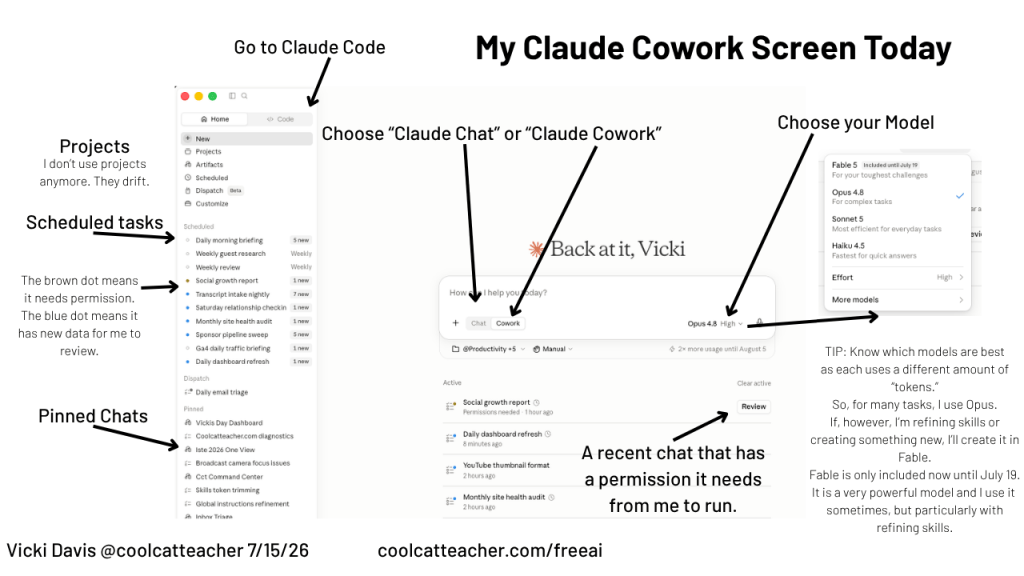
Claude Cowork works largely on your computer. (They’ve built ways to move things between my phone and my computer, but Cowork mostly lives on the desktop.) This is where you get to real agentic power — where Claude can carry a task forward on its own. You can have it scan a school announcements page and write a summary for your class newsletter, and plenty of other tasks like that. Claude Cowork has “chat” “Cowork” and also a “Code” button available.”
Claude Design can create designs and also send things over to Canva. It works in your web browser. It is not available inside Claude Cowork but only on the web. The goal is you can create design packages and it can quickly create and duplicate for you. And while you can send to Canva, Adobe has MCP’s that are really powerful.

And Claude Cowork can go active inside your Chrome browser tabs — with your permission. That permission piece is exactly where training has to come in. You need to know where to use it and where not to. For example, you could log into your student information system and hand Claude access to that tab if you didn’t know better. Training is what helps people know not to do that. But it will happen — which is why we have to teach it.
Claude for Teachers also includes Claude Code, the tool developers use to build software. Don’t let the name scare you off — this is exactly what makes vibe coding possible, and it’s the piece I want you to get excited about. More on that in a second.
One more distinction. Skills can run inside the traditional chat you’re used to (chat is when you just talk with an AI tool, and each chat is its own separate work), but skills also run inside Cowork. I have lots of tasks that Cowork does for me every week.
OK, I take it back. There is something called “Prompt injection” that people can run and use. I’m pretty sure the names of my skills could open me up to that if I were targeted – so I didn’t share my skills. Sorry.
Try this tomorrow
Ask Claude to take one existing worksheet and build three tiered versions of it — below, at, and above grade level — using the differentiation skill. One upload, one prompt, and you’ll see the difference the standards alignment makes. Just take off the names!
I’ll be honest about one caution here, too. An example used on the Anthropic website was someone using IEP meeting notes with Claude. I think that’s an area where I think you’d be walking into a problem. Keep the most sensitive student records out until you fully understand the settings.
Vibe Coding For Amazing Learning
Here’s the part we haven’t even talked about yet, and it might be my favorite. We sat down with Donnie Piercey about vibe coding, and it’s one of the best uses of an AI tool like Claude.
Vibe coding means you describe what you want and the AI writes the program for you. You upload your vocabulary, make a game of your choosing, and hand your students a link right from inside Claude Code. They play, they review, and you built it in an afternoon.

I vibe coded an AI review game and an innovation tracker I call my turtle tracker, and I documented how I built both. Honestly? The vibe coding I did this past school year did more to help my students than anything else I tried. They didn’t stop at playing the games I made — they started vibe coding their own review games and sharing them with each other in Google Classroom.
This and Claude Cowork are my two favorite uses of this tool.
I used to just use Claude chat and then Claude Cowork to write these games. Then, just click share and post the link inside Google Classroom.
I decided to learn more about Claude Code, and wow, I’m glad I did. If you want to know how I made this game from the PDF of my AI Vocab that I embedded above, here are the step-by-step instructions. (Google Doc)
🎮 Spy the AI — an AI vocabulary game
Do you know your AI vocabulary? Help the cat get to ISTE and see what level you are!
🐢 The Turtle Tracker — an innovation tracker
I vibe coded this tool to run right in your browser — even on your phone — to help you keep up with what you want to try next.
Both of these — and the writeups of exactly how I built them — live in my 50+ AI and EdTech Tools doc from my ISTE session. ,Here are the instructions for the more advanced way I vibe coded these games. But start small.
And here’s the kicker for teachers: because Claude for Teachers includes Claude Code, the same tool I used to build these is now free for you, too.
How to get verified
Ready to get Claude for Teachers?
It’s for individual educators (not whole schools or districts — those use Claude for Nonprofits). You’ll verify with your school email. Sign up by June 30, 2027, for a full free year.
What about the limits?
There are some limits — I’m sure of it, because there’s a little star at the bottom of the page noting that “extra usage limits apply.” And as a heavy user of Claude Cowork, I know how easy it is to hit those limits. So it helps to understand what’s being measured and how not to get stuck in the middle of a task.
What is a token?
Vocabulary
A token is a small piece of text. As a common rule of thumb, one token is roughly 4 characters, or about ¾ of an English word (the exact count varies by tool and language). Tokens are simply how AI measures the work it’s doing — every word you type and every word Claude writes back is counted in tokens, and that count is what determines how much processing you’re using. Anthropic token-counting docs
If you want to keep an eye on your usage, two simple commands help. Just type the slash and the word:
/session-audit — looks at everything you’re doing in Claude Cowork and will inventory transcripts and give you recommendations. Very cool if you’ve been using Claude a while to see if you can make improvements.
/context — shows your current conversation’s context window as a colored grid, with tips on what’s taking up the most space.
These slash commands can be very useful. I asked Claude Cowork to go through and find the most useful slash commands and make a graphic from them. However, a lot of them were for skills or things I haven’t installed.
So, just click in the box and type the forward slash – / . A useful one that opps up for me is “accessibility-review.” This is basically a fast way to open your skills but also some from anthropic that it creates.
Don’t forget — ChatGPT is free for teachers too
I want to make sure you know that ChatGPT is also free for teachers through June 2028. It works a little differently — it’s a shared workspace for teachers and staff at a K-12 school or district, where you can securely work with classroom materials, collaborate with colleagues, and (like Claude) your data isn’t used to train the models by default.
Between these two as well as the Gemini that is available for teachers through your Google accounts, we have three free tools that can help us. Gemini also has Gems (like the Edugems listed by my friend Eric Curts.) I think it is useful for IT Coaches and teachers, when you’re ready, to use different models. You’ll find each have different uses as well.
These are powerful tools. But we have to keep the teacher firmly in control. But part of being in control is knowing what you can do to begin with.
Where to learn more
If you want to get better at prompting, here’s the exact approach I teach my students: my presentation on crafting effective AI prompts.
And Claude Cowork? I think this is something I’ll be teaching a lot more about soon — so if that’s what you’re here for, follow my YouTube channel. In the meantime, go ahead and get approved. It’s free, the protections are real, and the best way to learn it is to start.
See how I teach about AI to my middle and high school students with lesson plans and resources you can use.
Get Claude for Teachers free →
See you later, educator.
The post Free AI for Teachers: How to Get Claude and ChatGPT Free appeared first on Cool Cat Teacher Blog by Vicki Davis @coolcatteacher helping educators be excellent every day. Meow!
If you’re seeing this on another site, they are “scraping” my feed and taking my content to present it to you so be aware of this.