

WordPress cannot import articles from JSON on its own. For CyberSEO Pro, however, importing content from JSON is a routine task. Simply provide the plugin with a link to the JSON file, create a post template, and each item in the list will be converted into a post on your site. New items are fetched on a schedule, and if desired, each text can be rewritten and illustrated using AI.
Most often, the JSON you need to import is a product catalog. These are provided by marketplaces, affiliate programs, and online stores. Each product has a name, description, price, SKU, and images. Let’s take the free public demo store DummyJSON as an example. Its products are fictional, but the response structure is the same as that of real catalogs. Let’s see which fields from this JSON are useful for creating posts and how to import them.
JSON example
The catalog is available at https://dummyjson.com/products?limit=5. Here’s what appears for a single product. It has more fields; we’ve kept only the necessary ones.
{
  "products": [
    {
      "id": 1,
      "title": "Essence Mascara Lash Princess",
      "description": "The Essence Mascara Lash Princess is a popular mascara known for its volumizing and lengthening effects. Achieve dramatic lashes with this long-lasting and cruelty-free formula.",
      "category": "beauty",
      "price": 9.99,
      "discountPercentage": 10.48,
      "rating": 2.56,
      "tags": ["beauty", "mascara"],
      "brand": "Essence",
      "sku": "BEA-ESS-ESS-001",
      "availabilityStatus": "In Stock",
      "shippingInformation": "Ships in 3-5 business days",
      "reviews": [
        {
          "rating": 3,
          "comment": "Would not recommend!",
          "reviewerName": "Eleanor Collins"
        }
      ],
      "images": [
        "https://cdn.dummyjson.com/product-images/beauty/essence-mascara-lash-princess/1.webp"
      ],
      "thumbnail": "https://cdn.dummyjson.com/product-images/beauty/essence-mascara-lash-princess/thumbnail.webp"
    }
  ]
}
Everything you need for a product page is here. Each product has two types of images: full-size images in the “images” list and a small thumbnail. We need the full-size image; the thumbnail is just the same image scaled down, and it serves no purpose on the page.
Add a source to Syndicator
Open the Syndicator page in CyberSEO Pro, enter the catalog URL in the field, and click “Syndicate.” You don’t need to check any boxes for JSON.
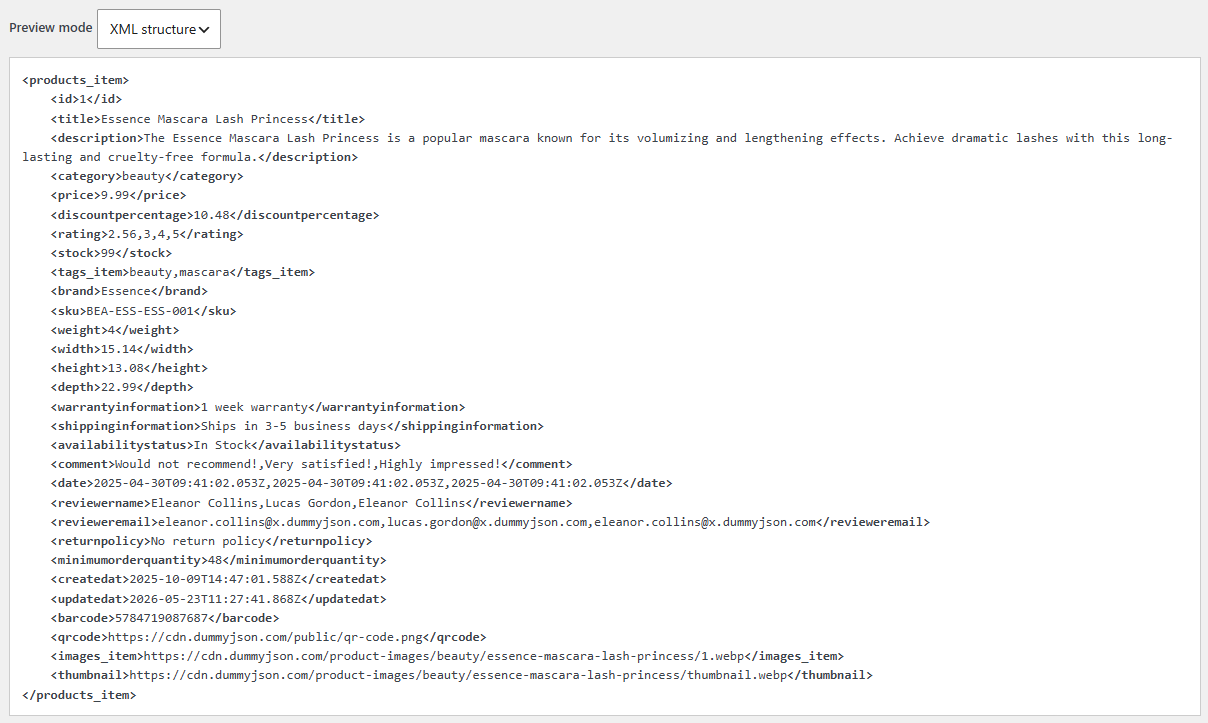
The plugin always works with XML. Regardless of the source – whether it’s JSON, CSV, or a regular HTML page – it first converts it to XML and only then processes it. The “Preview mode” field in “XML structure” mode shows exactly how it interprets your JSON. The object keys become tags, and it is these tags that you will insert into the template.
<products_item>
    <id>1</id>
    <title>Essence Mascara Lash Princess</title>
    <description>The Essence Mascara Lash Princess is a popular mascara known for its volumizing and lengthening effects. Achieve dramatic lashes with this long-lasting and cruelty-free formula.</description>
    <category>beauty</category>
    <price>9.99</price>
    <discountpercentage>10.48</discountpercentage>
    <rating>2.56,3,4,5</rating>
    <tags_item>beauty,mascara</tags_item>
    <brand>Essence</brand>
    <sku>BEA-ESS-ESS-001</sku>
    <availabilitystatus>In Stock</availabilitystatus>
    <shippinginformation>Ships in 3-5 business days</shippinginformation>
    <comment>Would not recommend!,Very satisfied!,Highly impressed!</comment>
    <reviewername>Eleanor Collins,Lucas Gordon,Eleanor Collins</reviewername>
    <images_item>https://cdn.dummyjson.com/product-images/beauty/essence-mascara-lash-princess/1.webp</images_item>
    <thumbnail>https://cdn.dummyjson.com/product-images/beauty/essence-mascara-lash-princess/thumbnail.webp</thumbnail>
</products_item>
Please note three things. Arrays of simple values are concatenated into a single tag separated by commas, such as tags_item. Nested objects are flattened into a list of tags, such as the data inside reviews. If the same name appears at different levels, the values are concatenated. That’s why the rating tag contains four numbers: the product’s rating and the ratings of the three reviews.
If the plugin did not find the element
The plugin searches the XML for a repeating element that contains a record. When a record itself contains lists – such as tags, images, and reviews – he plugin may take one of the nested lists for a record. In that case, the “XML structure” will show only a portion of the product, not the entire product.
It’s easy to fix this. Open the “Advanced” tab and enter the name of the desired element in all caps in the “XML section names” field. For our catalog, this is PRODUCTS_ITEM. Then check the “Disable JSON and XML tag detection” box so that the plugin uses only the names from this field.
The plugin reads only the portion of data returned by the specified URL. If the API returns records in batches, it will not follow the link to the next batch.
Post template
The plugin handles the title tag the same way it does in RSS, and it becomes the post title. All other tags are inserted directly into the template using the placeholder %xml_tags[tag_name]%. Your template determines what appears in the post.
Open the “Post templates” tab and paste the following template into the “Post content” field.
<img src="%xml_tags[images_item]%" alt="%post_title%"/>
<p>%xml_tags[description]%</p>
<ul>
    <li>Brand: %xml_tags[brand]%</li>
    <li>Price: $%xml_tags[price]%</li>
    <li>Availability: %xml_tags[availabilitystatus]%</li>
    <li>Shipping: %xml_tags[shippinginformation]%</li>
</ul>
You can retrieve the product category and tags directly from the JSON. On the “Advanced” tab, in the “Custom fields” field, enter two lines.
category->%categories%
tags_item->%post_tags%
thumbnail->%link%
The first line converts the product category into a post category, and the second line converts the list beauty,mascara into tags. The third line is needed to prevent duplicates. By default, the plugin checks for a post’s uniqueness based on the source URL, but there is no URL in our JSON. The thumbnail URL is unique for each product, so we use it as the post link, and re-importing won’t create duplicates. Alternatively, on the “Basic” tab, in the “Check for duplicate posts by” field, you can select “Title only,” in which case uniqueness will be checked based on the title.
There’s one caveat regarding categories. By default, a post will be assigned to the “beauty” category only if that category already exists on the site. To have the plugin create missing categories automatically, open the “Basic” tab and select “Create new categories defined in syndicating post” from the “Undefined categories” drop-down list.
Import results
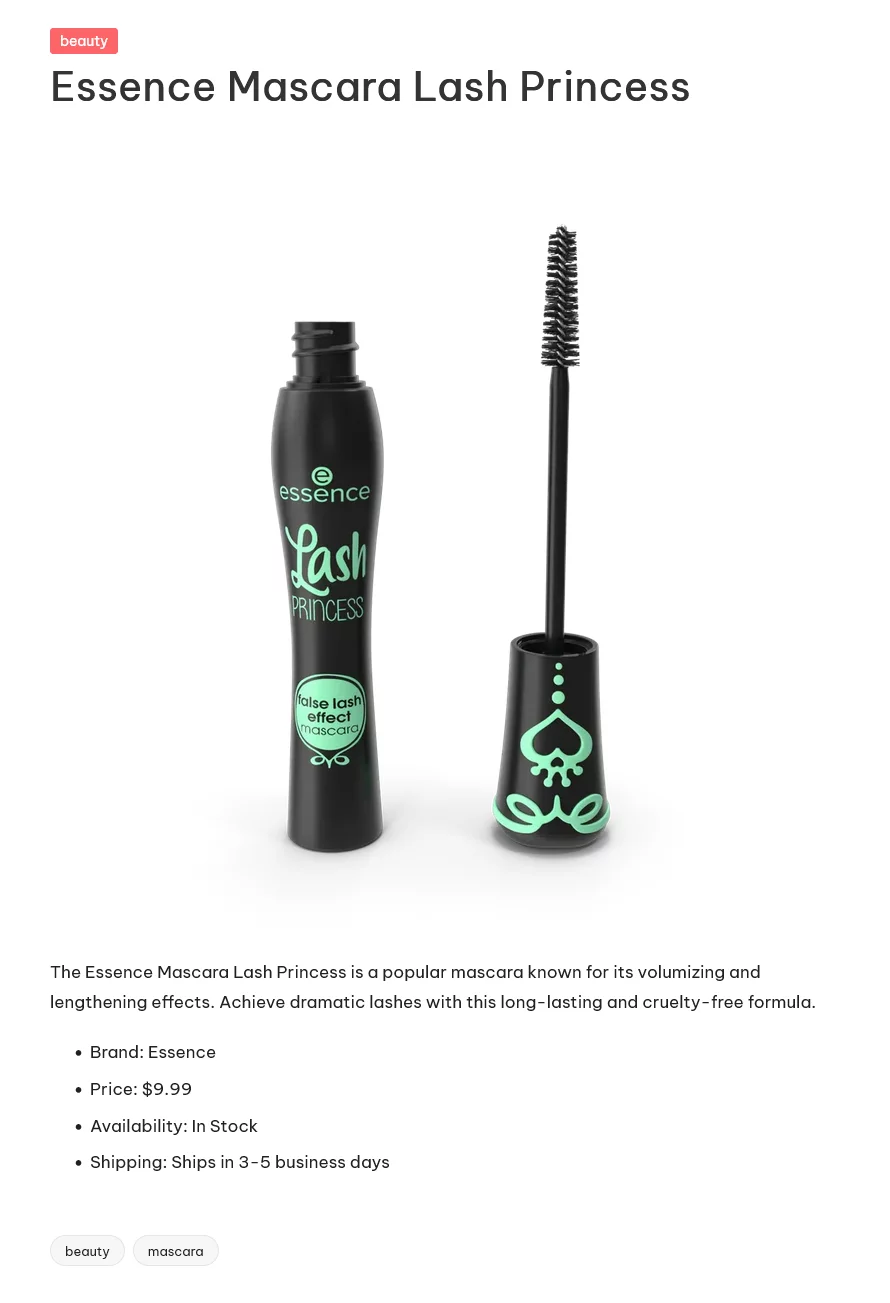
Save the feed and start the import. Posts will appear on the site with an image, description, price, category, and tags. The product image will automatically become the post’s thumbnail using the default settings.
Making content unique with AI
Product descriptions are often identical across many stores, so it’s worth rewriting them. To do this, replace %xml_tags[description]% with the shortcode [ai_generate] in the template.
<p>[ai_generate engine="openai-gpt-6-luna" prompt="Rewrite the product description below in your own words. Keep all facts. Product: %post_title% - %xml_tags[description]%"]</p>
The engine parameter consists of the provider name and the model name. For example, openai-gpt-6-luna for OpenAI, anthropic-claude-haiku-5-5 for Anthropic, and google-gemini-4-hydrogen for Google. Any other model can be connected via OpenRouter, such as openai/gpt-6.1-terra. A fast and inexpensive model is sufficient for rewriting. Reasoning models run slower and are significantly more expensive, without producing better text.
Description with an online search
Our product isn’t fictional. Essence Mascara Lash Princess is actually sold. So instead of rewriting a short description from JSON, we can have a neural network find this product online and write a full review of it. To do this, we need a model with access to search. In OpenRouter, this is enabled by adding :online to the end of the model name.
[ai_generate engine="openai/gpt-6-luna:online" prompt="Search the web for the product '%post_title%' by %xml_tags[brand]% and write a detailed, helpful review of it for a shop blog. Use only facts you have found and do not invent specifications. Return the result as clean HTML suitable for the body of a WordPress post, using only p, strong, h3, ul and li tags if needed. No introduction or comments, just the review."]
The :online suffix is critical here. Without it, the model won’t be able to access the internet and will write from memory – that is, make things up. But even this suffix alone doesn’t guarantee that a web search will be performed. Therefore, the prompt itself must include a direct command to find the product online, as in the beginning of our example. The requirement to return clean HTML is also important, since the model needs to know which markup to use so that the result fits into a WordPress post without any edits. The shortcode is placed in the post template in place of the description, without being wrapped in the <p> tag, because the model will format the paragraphs itself.
Online searches are billed separately, so the cost per post will be higher than for simple rewriting. For a catalog with hundreds of products, test the results on a few posts first.
What’s next
The same procedure applies to any source. If you already know how to import JSON, you know how to import XML, CSV, and HTML. The only difference is what you’ll see in “Preview mode” under “XML structure.” Read a dedicated article about importing products for WooCommerce, and check the pricing page for plugin prices.