This post is sponsored by ABCmouse
When I first started this website in 2008, my goal was to help parents navigate the constantly growing landscape of digital learning experiences for their kids. There were very few educational websites that existed to provide quality age-appropriate content but ABCmouse was one of them. Today ABCmouse has been updated for a new generation of explorers, thinkers, and creators and their parents who want their kids to have the best safe personalized learning experiences. Keep reading for a full ABCmouse review of their free Basic Access and how it supports special education needs.

About ABCmouse
Created by Age of Learning, ABCmouse has been providing engaging, research-driven, digital experiences for ages 2-8 for over 15 years. Current content includes 13,000 reading, phonics, math, science, art, and music activities along with puzzles, interactive books, and more. Open-ended play through the app fosters early STEM skills, coding fundamentals, and critical thinking skills.

An impressive 50 million children have completed over 13 billion learning activities and ABCmouse has supported more than 700,000 teachers and has been trusted by 40 million families.
ABCmouse Plans: Free Basic vs Paid Premium

ABCmouse offers two plan options: Basic Access (free) and Premium Access (paid). Both Basic and Premium provide safe, engaging learning experiences. Here’s an overview of how they differ, although this ABCmouse review focuses on free content available through ABCmouse Basic.
ABCmouse Basic (free) offers daily access to a selection of 10 learning activities per day without the worry of being charged. Basic is designed to give families meaningful access to engaging activities with no subscription or payment required. With ABCmouse Basic, there’s no trial and no charges—just safe, educational ways to learn every day, without the worry of being charged.
ABCmouse Premium (paid) provides access to the full curriculum, unlimited play, and added features for families with multiple children. Premium includes more than 13,000 engaging activities and personalized Learning Paths for up to three children. ABCmouse Premium content can be enjoyed through the website or app. The current cost of ABCmouse Premium is $14.99/month with a 30 day free trial or $45/year.

ABCmouse Review: Opening the App for the First Time

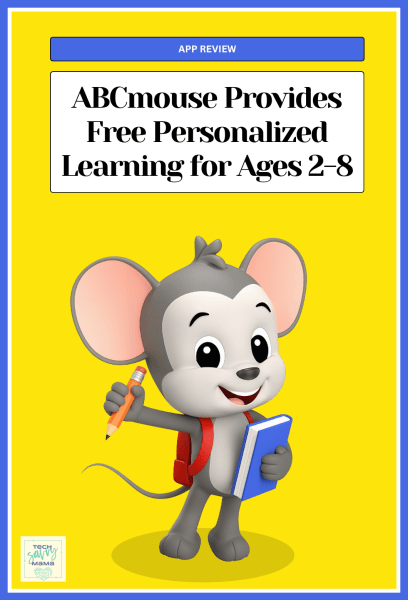
Upon first opening ABCmouse, the mouse character, ABC Mouse, or also referred to as ABC, appears on a yellow background before disappearing to show the ABCmouse logo with the name of the app.

The mouse appears again upon the launch of the home screen greeting kids with “Hello, it’s good to see you” or another salutation while its hand glows for a high five. This friendly welcome encourages immediate interaction, even before kids begin to explore learning through the app.

Learning with ABCmouse

The ABCmouse home screen is broken up into four different sections: Daily Learning Quest, My World, My Classroom, and My Learning Path. Each section is either a rectangle or square with a small amount of text and characters. All sections appear on the home screen, eliminating the need for scrolling. Having all available content on a single screen makes ABCmouse streamlined for learning and it helps get kids learning faster.

A white gloved hand with an outstretched pointer finger highlights suggested activities kids can complete to work towards a surprise. Most kids probably won’t need the app’s suggestions because the captivating visuals entice them to tap to find their first learning activity.
ABC, in the lower right corner of the screen also provides verbal suggestions. At any time, kids can tap on him for app guidance.
ABCmouse allows parents to change child settings to customize learning. For the purposes of this ABCmouse review, activities were selected based on a 4 year old named Sally with a pre-K reading and pre-K math level.

ABCmouse Review: Daily Learning Quest Section
The Daily Learning Quest section occupies the most screen real estate on the home screen and features content that rotates daily. The written name of each activity is overlayed on the colorful visuals enticing non-readers to tap to play.
Most of the Daily Learning Quest activity names are self-explanatory to adults. Visuals provide clues to kids about what they’ll be learning, even if they’re not quite reading. Over time, early readers will start to learn the name of the activity through sight word recognition, a key early reading skill.
Kids will be enticed to tap on content based on visuals and will enjoy the discovery aspect of the app.
On the first day I used ABCmouse, Daily Learning Quest appeared with the words New for You! It highlighted educational experiences developed in partnership with companies such as NASA, San Diego Zoo and Safari Park, and Major League Baseball.
On the second day, Daily Learning Quest featured activities such as Printing Skills, Shapes, My Classroom, Winter Sports, Word Fluency, Music, Logic, Letter Names, Vocabulary, Numbers, Life Skills, and more. There were also tiles navigating to the My World and My Classroom sections of the app. These two sections also appear on the home screen. Keep reading for information about the My World and My Classroom sections.
Here’s a look at some of the Daily Learning Quest activities provided to my fictional 4 year old, Sally during my ABCmouse review.
Daily Learning Quest: Logic

Instead of spoken instructions, a directional arrow with a pointing hand appears on the screen to indicate to kids to swipe up, left, or right to practice fine motor skills as they move their penguin through a maze of snowy boulders.
 Along the way, there’s a train that travels from left to right, a river, rolling snowball, and other obstacles that require local thinking to help their penguin reach the end.

Daily Learning Quest: Life Skills

The Bright Smiles Safari activity requires kids to help Harper the Hippo brush and floss her teeth. Music with subtle but catchy lyrics repeat the word brush while kids drag their finger to move the flossing pick or toothbrush to make the gunk in Harper’s mouth disappear.

This activity reinforces the importance of tooth brushing and flossing in a fun way while requiring kids to practice fine motor skills. It really took a lot of scrubbing finger motions to get Harper’s teeth clean!

Daily Learning Quest: Letter Names

During this activity, kids drag Sparkle the Unicorn from side to side to catch the featured letter while avoiding the incorrect ones. The featured letter appears 3 times at the top of the screen, indicating the number of times kids need to catch it. The repetitive nature of having to recognize the same letter multiple times as other ones drop is helpful in teaching letters.

To reinforce letters, each letter is said as Sparkle catches it, whether it’s the correct one or not. Correct letters are celebrated with stars whereas incorrect ones bonk Sparkle on the head and cause swirls to appear.
Daily Learning Quest: Word Fluency

Word fluency requires a knowledge of letters. In this activity, kids are given a word like ‘cake’ to spell. Each of the 4 letters appears at the top of the screen in a box with the letter written in gray. As the ABCmouse character jumps to catch a letter in the word, the letter color at the top of the screen changes from gray to black.

Daily Learning Quest: Space Partnership with NASA

The ABCmouse Space Collection in partnership with NASA helps young learners build fundamental knowledge in science and space through a variety of different learning activities. Branding is minimal but it’s distinguishable from other content because ABCmouse appears dressed in a space suit with a space shuttle.
As a mom who has written about the importance of encouraging STEM learning and has two college-age engineering majors, I’m always interested to see how app-based digital learning experiences in STEM can foster curiosity in young ages. I was pleased to see such a wide variety of activities targeting various learning styles. Here’s a look at just a couple of the many learning tasks through the NASA partnership.
The Wonder Files: The Moon
Since The Wonder Files: The Moon was my first activity for the day, the ABCmouse app let me know I had 9 activities left to play. Basic users are allocated 10 learning experience each day and users are reminded of how many remain during play.
This animated video features a girl asking her dog, Rocky, questions like: Why does it change shape? What is the ground of the moon like? She pondered possibilities that maybe the surface of the moon is rocky, hilly, or could be covered in space grass and said the more she thinks about the moon, the more questions she has.
This short video featured a perfect age-appropriate introduction to space ages 2-8 would understand. Thinking about the moon and having questions encourages kids to be curious about the world around them. It also introduces the first step of the scientific method: Ask a question. The end of the video also teases a book called the Wonder Project, a place to write questions and find out answers together, like a scientific notebook used by scientists.
Meet Our Moons- Part 1

Meet Our Moons is an animated non-fiction text featuring a character named Ben who provides facts about the moon and the moon’s phases. Text is highlighted in yellow as it’s read by Ben. This helps beginning readers make the connection that there for each written word, there is a spoken word. Learning to recognize sight words and understanding 1-1 correspondence is an essential skill for learning to read. Additional animations layered on the story’s visuals enhance learning.

While learning can be done in any order, content in Meet Our Moon- Part 1 answered questions about phases of the moon from the previous activity, The Wonder Files: The Moon.
ABCmouse Review: My Learning Path

The My Learning Path section of ABCmouse provides kids with a choice to complete sequential lessons in either reading or math. Customized learning levels for kids selected by parents through Settings appear under each subject. For our 4-year-old, Sally, I selected math. Keep reading for information about how to customize your child’s learning level through Settings.

The first My Learning Path math lesson involved teaching to count to the number 20. The series of 6 lessons involved watching, listening, reading, and playing to reinforce numeracy through each short lesson that provided essential math concepts.
Writing the number 20 by tracing the number 20 with your finger on the screen served as a quick first lesson to introduce the number in an engaging way. Upon completion, the learning path screen appeared and the character moved to the next stepping stone.

The next activity featured a video with Miracle. As Miracle counted, each number from 1-20 appeared on the screen and was highlighted as spoken.

To reinforce learning, the counting was repeated but this time with cookies. As cookies appeared on the screen, the number appeared on it as it was counted.

The Learning Path took us to the next activity which was a digital 2 player Connect 4 game. Just like the real-life game, this involved using hand-eye coordination and strategy to get 4 of the same color in a row. When beaten by the app, the words You Lost were accompanied by cheery balloons.

Next on the Learning Path was a book called Counting Fingers and Toes, a math-based story that combined literacy and numeracy in a nice way. Bonus: Words were highlighted as they were being read, something I always appreciate as a former first grade teacher who taught my students how to read!

The final activity was called Show What You Know, an interactive assessment to determine how well kids knew their numbers up to 20.
A question appeared at the top of the screen, was read, and then number choices appeared below. Kids were required to figure out what number came next to complete the sequence.

Each number was read aloud and could be read again if tapped. Four questions were asked in total before the entire Learning Path was completed and kids earned tickets for their work.

Despite many learning activities, the entire My Learning Path only counted as 1 out of the 10 daily activities allowed through the ABCmouse Basic plan. I highly recommend making sure your child completes either reading or math lessons in their Learning Path each day to maximize the 10 activity allowance.
ABCmouse Review: My Classroom
 The My Classroom section is where kids can discover learning by subject area including Reading & Writing, Math, People & Places, Science & Health. These subjects are depicted on “shelves” on a screen with a classroom-like appearance. Icons for these subjects appear in the center of the screen with the words underneath them.
Smaller shelves on the right-hand side of the screen feature games, videos, art, and reading icons. Aboard to the right of the teacher highlights a subject for the day which was Reading Readiness on one of the days I was working on my ABCmouse review.

Upon opening My Classroom, a friendly teacher character appears saying, “Welcome to the classroom, Sally. Here we can explore reading, writing, and math.”
Gentle guidance is provided if kids hesitate to select a learning area to start with through prompts like, “I think you’ll like the activities in the Reading and Writing shelf. Let’s look in the Math shelf.”
Always interested in STEM learning for the youngest ages, I explored Math and Science & Health.

As an ABCmouse Basic user, I could access content under Featured Activities. Scrolling down, I could see topics like Animals, Human Body, Weather and Climate, Earth and Space, Habitats and Environments, and Healthy Habits.
There were 109 Science & Health and 434 Math activities that I couldn’t access without the paid Premium plan but there was still plenty to choose from among the Featured Activities through the free Basic version.

Here’s a look at some of the Math and Science & Health activities presented to our 4 year old, Sally.
Pet Vet: Bandages

This health lesson about cleaning and bandaging wounds also incorporates shape matching and fine motor skills. Kids are required to practice hand-eye coordination to clean scratches with a cotton ball.

After wounds are clean, a selection of different shaped bandages appear and kids must match the best shaped bandage to cover the wound.
Snack Stack

Snack Stack is a virtual version of stacking blocks but in digital form with food shapes like square cubes of waffles and cinnamon buns, rectangular glazed donuts and bacon, along with irregular shaped foods like t-shaped broccoli, curved bananas, round apples, and wedge-shaped carrots.

Screenshot
Items fall from the top of the screen and can be manipulated by using the arrows to the right or left of center to turn them however, some items, like the banana, are tricky to manipulate to stack more food on top, making the snack stack fall.

Kids get multiple tries to stack snacks, making it a fun digital version of blocks for a new generation.
Mixed Up: Seasons

This activity requires kids to categorize items associated with different seasons into bowls labeled with the name of the season. For this game, Sally was looking for items used in winter, spring, and summer. As items appear on the conveyor belt, kids can tap on it to hear the name of the object before correctly sorting it. Each season required 3 items to be correctly sorted before the chef would disappear.

Once all chefs had full bowls, a progress bar graph appeared and kids were given the opportunity to choose a treat to feed the cat on the final screen.

ABCmouse Review: My World

Through My World, kids can explore five thematic topics that address certain learning objectives and customize an avatar.
Bot Beats Coding

Bot Beats involves dragging blocks of code to program different parts of the robot to complete an action. Kids can tap on the robot’s head, feet, or arms to program them to make music or dance. For the head, kids choose among 6 different blocks of code with various facial expressions and drag them into 8 distinct spaces to program the robot’s head to make distinct beats.

A single block of code dragged into place will make the robot’s feet dance. Kids can program the robot’s arm movements by choosing among two different blocks of code to drag into four spaces.

This visual, block based interface is an effective way to introduce young children to coding concepts that they’ll be exposed to later through platforms like Scratch, ScratchJr, Tynker, or Code.org which is what I used in my 8th grade middle school computer science class.
Safari Life Science

This activity allows kids to explore an animal park by tapping on different icons on the safari map. They’ll learn facts about giraffes, lions, and many other animals while acting as zoo veterinarians in charge of their care.

Some of the tasks include washing and caring for a giraffe’s health, keeping a lion cub still to be weighed by choosing calming music, and figuring out what toys and foods active lion cubs need to stay healthy.

The numerous activities in the Safari Life Section of ABCmouse serve as an interactive way to learn science in an age-appropriate way.
Hamster Spatial Logic

Every child who has always wanted a hamster will love choosing a pet hamster and selecting various tubes and accessories to design a hamster habitrail. Kids drag and drop straight and curved to connect already existing pieces or can choose a tube with a bubble as a hamster lookout tower.

Having to think logically about the space and what is needed to get their hamster from one part of its habitat to the other is a great spatial logic activity that is important for STEM learning.
Other topics in My World include Pet Town for Narrative Play and Aquarium for Social and Emotional Learning.
Customizing Learning with ABCmouse
Under the ABCmouse Basic plan, your child will be listed as Friend in the upper left corner. To change the name, tap on Settings, enter your birth year, and the square that says Friend.

From the Edit Child screen, you can edit your child’s name, birthday, reading grade level, and math grade level. I appreciate that reading grade level and math grade level are separate and can be adjusted for more relevant learning experiences since reading and math skills can vary widely for ages 2-8.
How ABCmouse Supports Special Education Needs

A wide variety of features support diverse learners, including those with special educational needs. Audio narration, interactive visuals, and self-paced activities support different learning styles. The flexibility to set or change the grade level to match needs is also important since app content can be used to supplement classroom learning through specialized education plans determined by a child’s educational team.
ABCmouse Review: Summary

In a world where free versions of apps are known for providing extremely limited learning experiences for kids unless parents pay for costly subscriptions, free ABCmouse Basic is a welcome change. Parents will appreciate the high quality safe personalized learning experiences while kids ages 2-8 will find the content engaging and easy to navigate.
With a myriad of topics that are relevant, there’s no shortage of learning that can be done through the 10 activities per day limit under the Basic plan. Parents might also appreciate having a limited number of activities to help moderate screen time in favor of healthy digital habits.
As a mom who used to teach middle school computer science and engineering, I have to say I was extremely impressed by some of the STEM learning provided by ABCmouse. Activities such as Bots Beat Coding and Hamster Spatial Logic are great ways to familiarize kids with programming concepts in an age-appropriate and fun way.
The content partnerships with NASA, San Diego Zoo and Safari Park, and Major League Baseball (MLB) produce impressive content that is a value-add for ABCmouse and young learners. My only criticism of the content was I wanted more! Content from all 3 partners appeared on my first day of using ABCmouse but because Daily Learning Quest content rotates, I didn’t see any partner content pop up during the next two days of app use.
Even though I would have loved to continue exploring this content, there was still plenty to choose from and it keeps me wanting to go back to ABCmouse for more.
Download ABCmouse Basic for free here. At any time, you can upgrade to ABCmouse Premium at the cost of $14.99/month with a 30 day free trial or $45/year.
While this is a sponsored post, all opinions are my own and based on my perspective as a former teacher and parent. Images courtesy of ABCmouse.
The post ABCmouse Review: Free App Personalizes Learning for Ages 2-8 appeared first on Tech Savvy Mama.