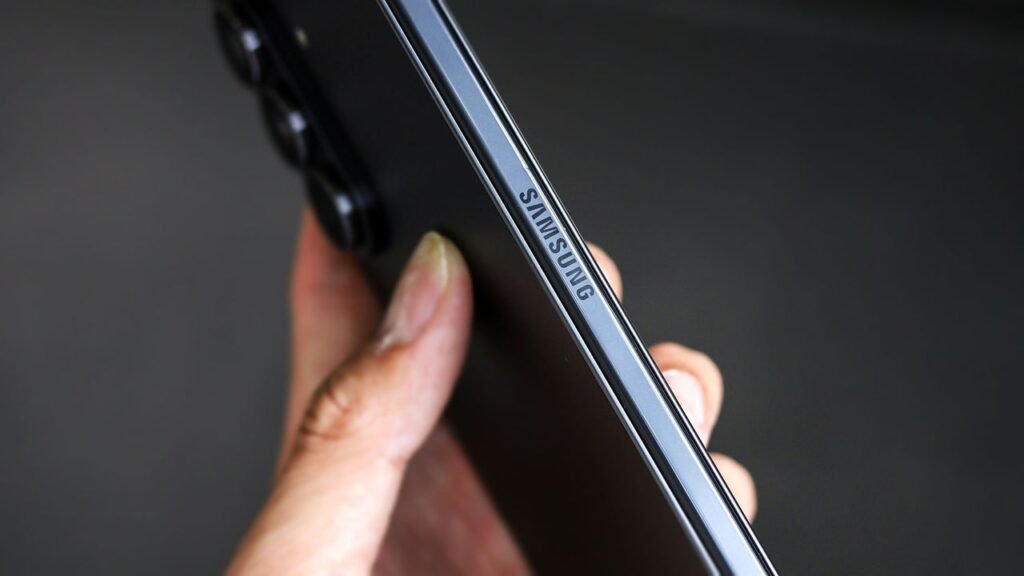
Samsung builds fantastic phones, but the company also has a habit of shipping them with some of their absolute best features turned off by default.
If you want to unlock the full potential of your Galaxy device, let’s take a few minutes to dive into your settings menu. There, you’ll find some incredibly cool features you should enable right away.
Wireless power sharing
Imagine your friend’s phone is dying, or your wireless earbuds completely fizzle out right before a flight. If you have a modern Galaxy phone, you’re carrying around a portable wireless charging pad in your pocket. You just have to activate it first.
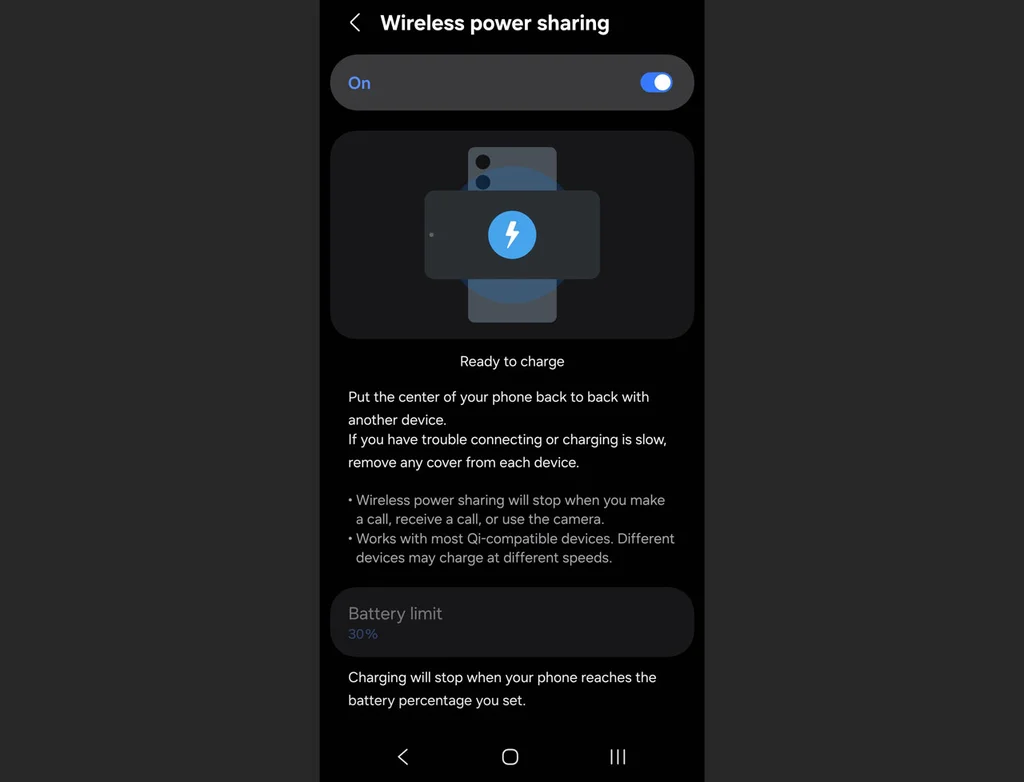
Go to Settings, scroll down to Battery, and tap Wireless Power Sharing. Toggle it to On, then flip your phone face-down and place the dying device right on its back.
Notification history
We’ve all done it: A notification pops up, you reflexively swipe it away to clear your screen, and a split second later you realize it was actually an important text, email, or delivery alert.
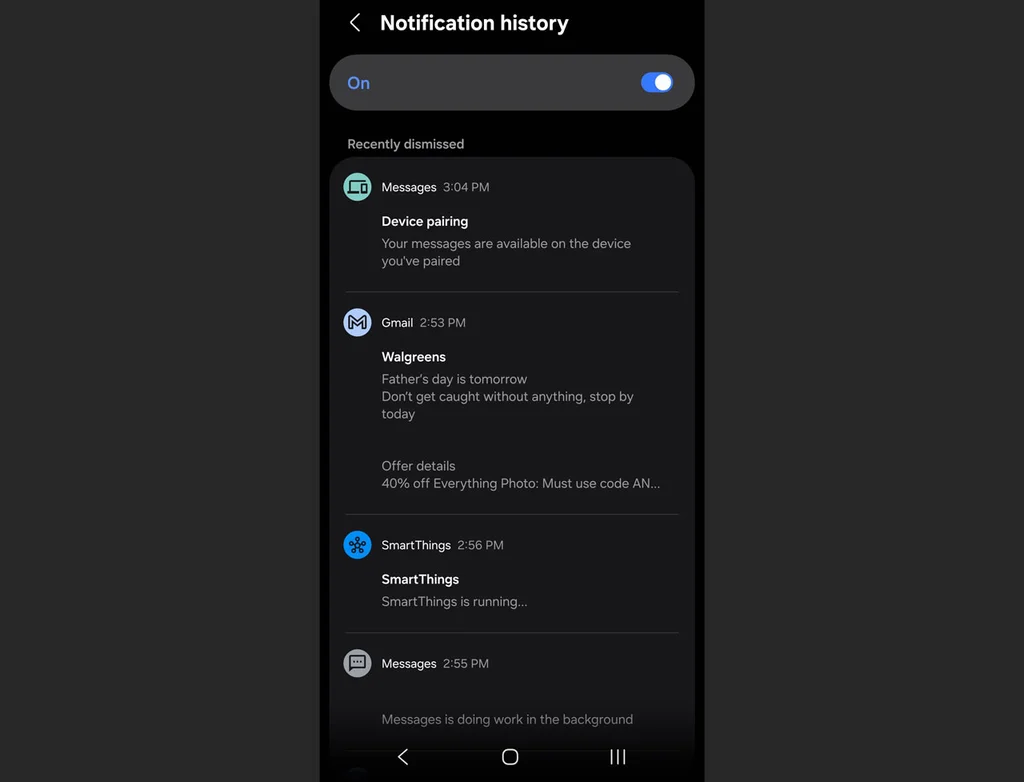
Turning this feature on creates a digital paper trail for every single alert that hits your device. Open Settings, tap Notifications, select Advanced settings, and tap Notification history, then flip the toggle to On.
Once enabled, this screen will keep a chronological log of every single notification you received over the past 24 hours, even the ones you accidentally dismissed. If you ever wonder what an alert said, you can just jump back in here to read it.
Separate app sound
If you’ve ever tried to play a podcast or music from your phone to a Bluetooth speaker only to have your audio violently interrupted by the loud chime of an incoming text message or a random game notification, this one’s for you.
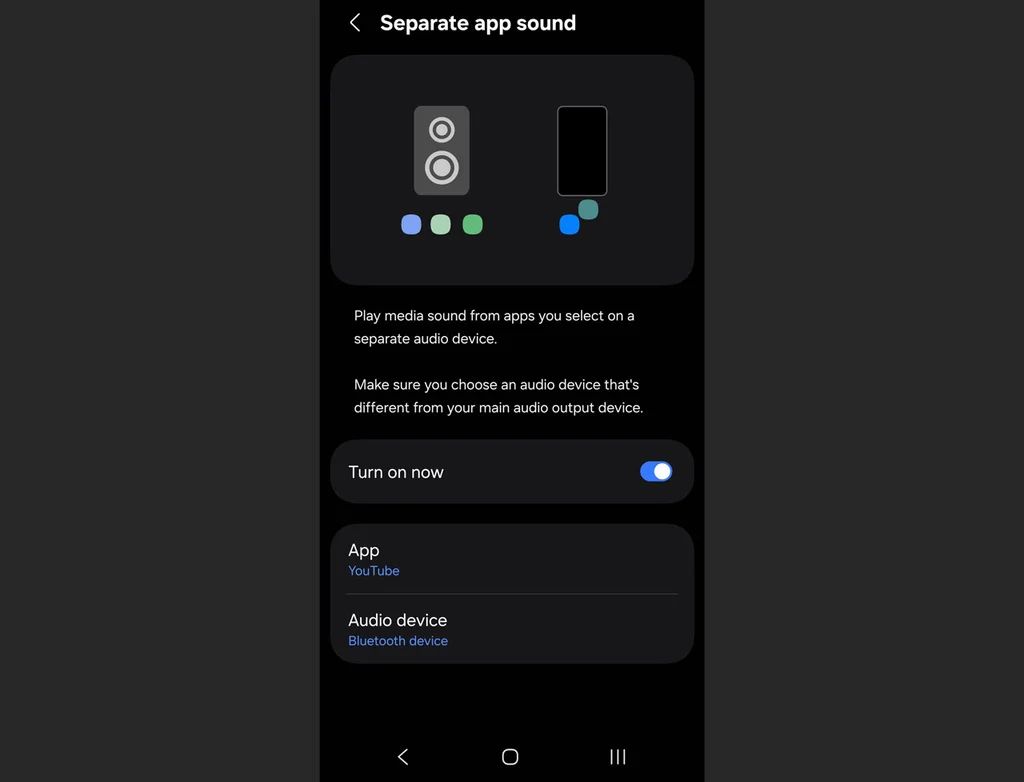
The Separate App Sound feature isolates your audio streams so you can, for instance, set Spotify to play exclusively through your Bluetooth speaker or earbuds while your phone’s notification sounds stay local to the device’s actual speakers.
Head over to Settings, select Sounds and vibration, scroll down to Separate app sound, and select which app you want to isolate and where you want it to play.
Remap the power button
Out of the box, pressing and holding the side button on a new Galaxy phone doesn’t actually bring up the power menu to turn your phone off. Instead, it launches a digital assistant.
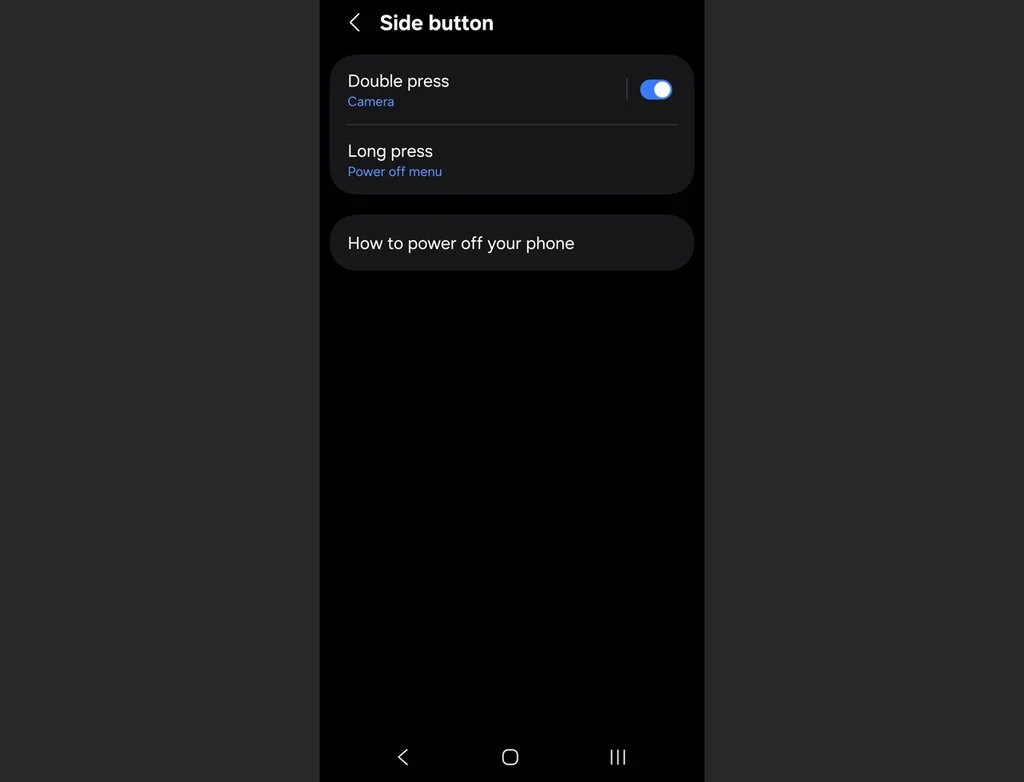
Fortunately, you can reclaim your power button by going to Settings, tapping Advanced features, and selecting Side button. Under the “Press and hold” section, switch the setting to Power off menu.
While you’re on this screen, you can also customize what a double-press of that same button does. By default, it opens the camera, but you can set it to instantly launch any app on your phone, such as your flashlight or mobile wallet.
Mute with gestures
When your phone starts blaring a loud alarm or an incoming call in the middle of a quiet room, your instinct is usually to frantically fumble with the volume rocker or slide the decline button. Samsung has a much more elegant, physical solution built right in.
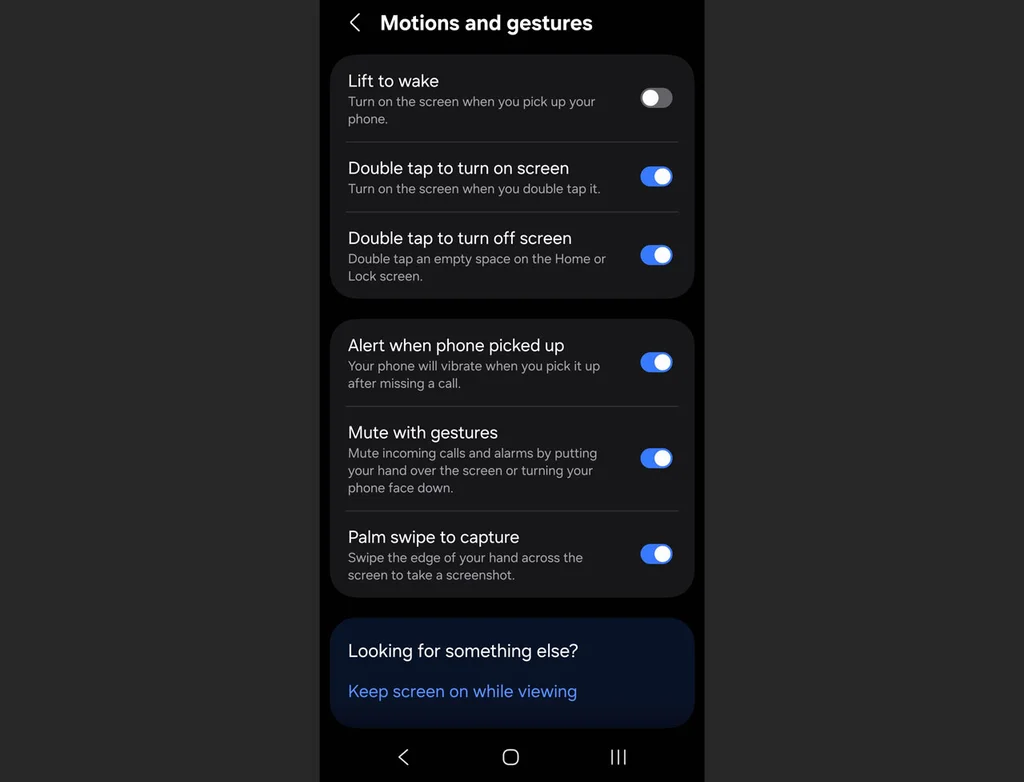
Go to Settings > Advanced features > Motions and gestures, then activate Mute with gestures. The next time an alert goes off at the wrong moment, you can instantly silence it simply by placing your palm completely over the screen or flipping the phone face-down on a table.
Battery protection
Many people plug their phone into a fast charger overnight, meaning the phone hits 100% battery capacity in an hour or two and then sits there cooking under maximum electrical pressure for the rest of the night.
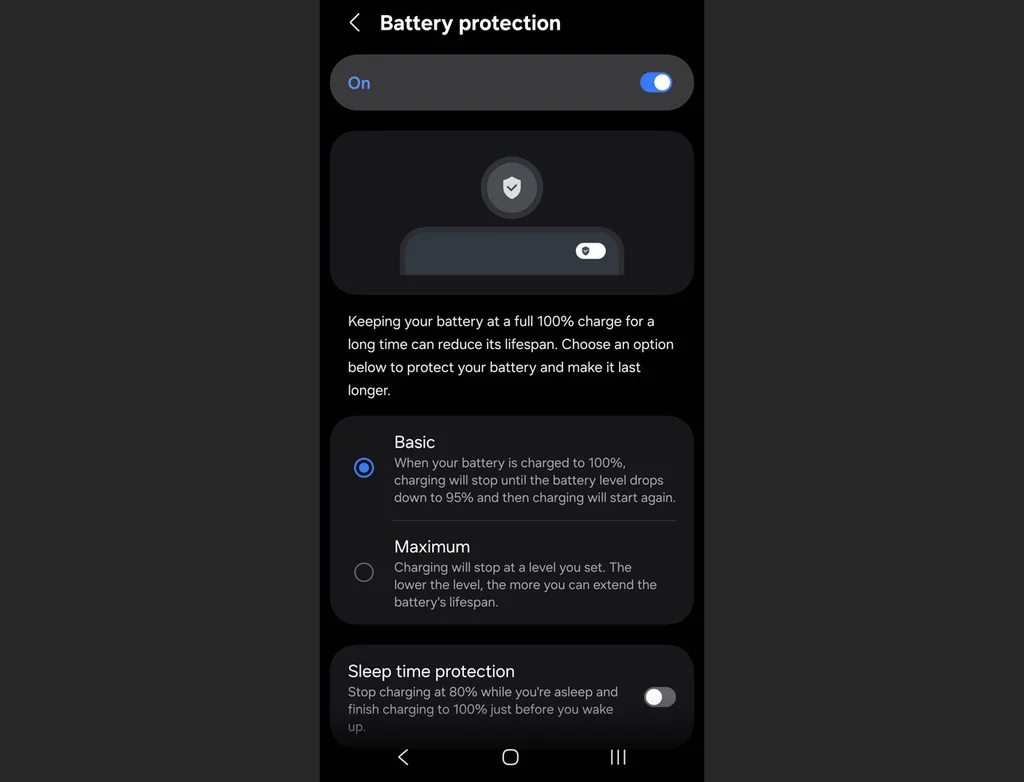
This can degrade lithium-ion batteries rapidly, so if you plan to keep your phone for several years, you’ll want to limit that strain.
Open Settings, go to Battery, and tap on Battery protection. Turning this on gives you a few options, including Basic or Adaptive modes, which limit the time your phone sits idling at absolute maximum charge while you sleep.