Whenever I install a new web browser, one of the first things I do is replace the new tab page.
Depending on which browser you use, the default home page could be cluttered with news headlines, promotional tiles, or a messy list of recently visited sites. Typically, though, I already know which page I want to visit, and everything else becomes a distraction.
So instead of sticking with the default, I use an alternative that focuses entirely on bookmarks, presenting dozens of links in the tidiest way possible.
This tip originally appeared in the free Cool Tools newsletter from The Intelligence. Get the next issue in your inbox and get ready to discover all sorts of awesome tech treasures!
Nothing but ’net links
For a better new tab page full of your favorite bookmarks, check out A Fine Start.
➜ A Fine Start is a web browser extension that replaces your default new tab page with a simple, organized list of links.
⌚ Installing the extension takes just a minute. Setting up your links takes a few minutes longer.
✅ A Fine Start’s extension works in almost any desktop web browser. There’s also a non-installable web page version, which you can set as your homepage in Safari and some mobile browsers.
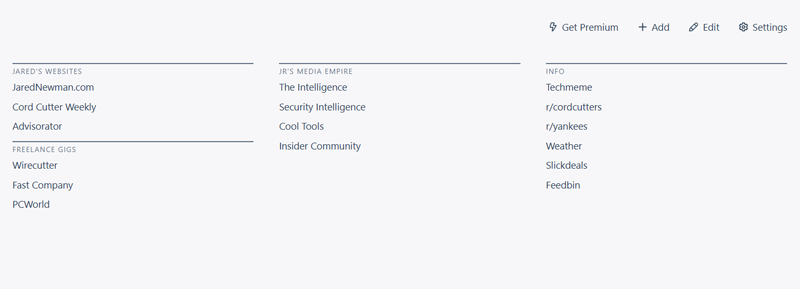
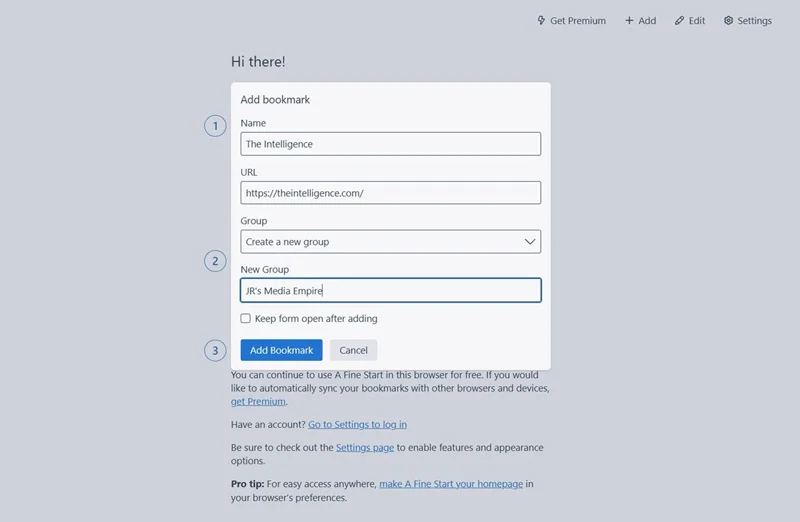
After installing the extension, use the “Add” button at the top to start adding links to the page. Give each link a name, and consider adding it to a “Group,” which creates a bit of visual separation between different kinds of bookmarks.
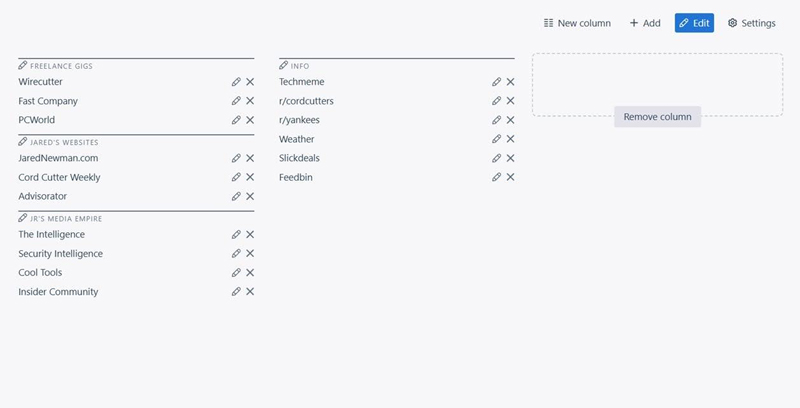
Once you’ve added a bunch of bookmarks, you may want to reposition them. Just click the “Edit” button, then drag and drop individual bookmarks or an entire group. You can move items into separate columns to further distinguish different categories of bookmarks.
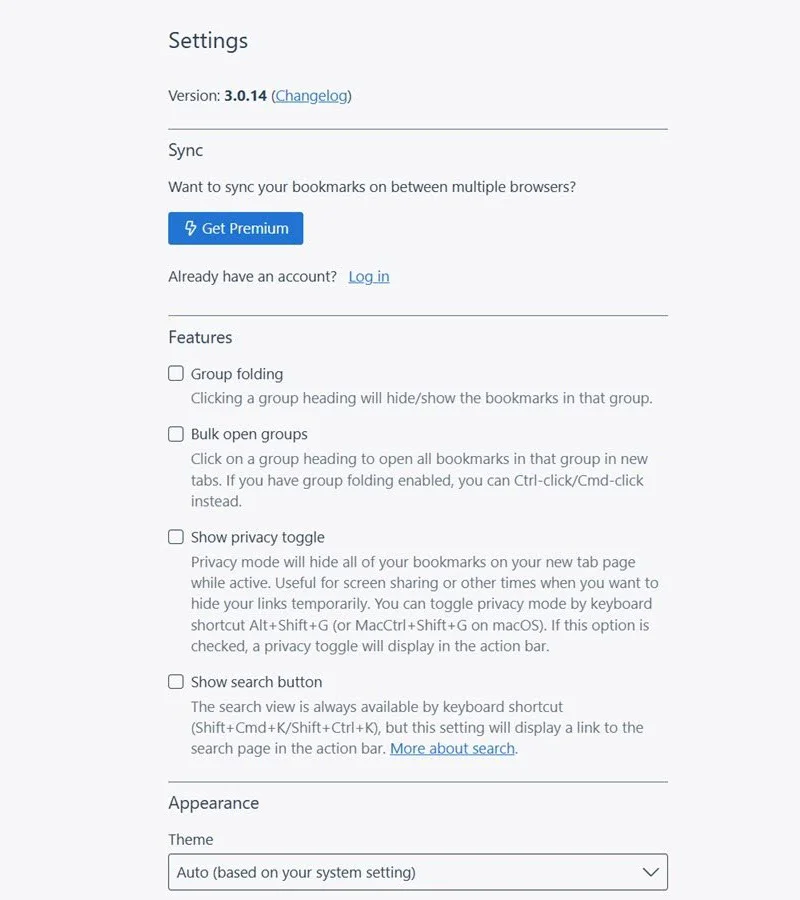
A Fine Start’s Settings menu is also worth a look. From here you can add a search button, a bulk open setting, an option to expand or collapse your groups, and a “privacy toggle” that hides all your bookmarks (for instance, while screen-sharing). You can customize color themes and buttons in this menu as well.
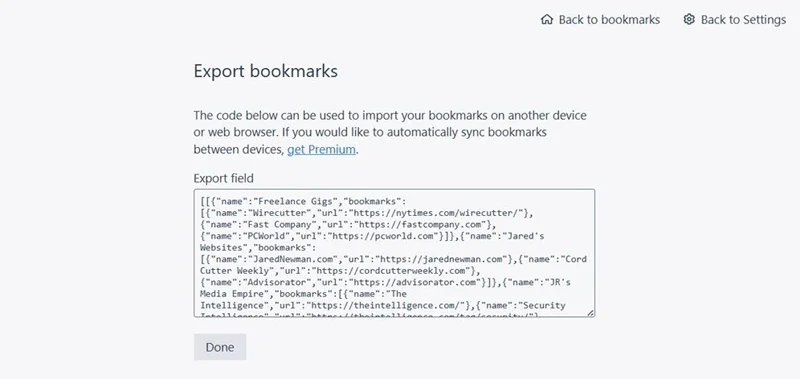
You should also take note of the Import/Export option in settings. While A Fine Start has a $5-per-month premium option that automatically syncs bookmarks between devices, you can also just manually export the code, and then import it on a new device or browser. Once your bookmarks are all set up, consider keeping your export in a note or file somewhere so it’s easily available for importing later.
A Fine Start isn’t alone in providing a simpler, bookmark-driven new tab page, but I appreciate its easy setup, clean presentation, and lack of overwhelming customization options. It also emphasizes privacy, as your bookmarks only are stored on-device unless you pay for the optional sync service.
Best of all, it works in any browser, so you can switch from Chrome to Firefox to Vivaldi to Brave to Opera to Helium to Safari (and so on), and easily keep the same list of bookmarks handy. That’s the whole point of having them, isn’t it?
- A Fine Start is available as an extension on Chrome, Firefox, and Chromium-based browsers, and as a bookmarkable web page in other browsers like Safari.
- The site is free to use with no bookmark limits or access restrictions. An optional $5-per-month subscription syncs bookmarks across devices, but manual importing and exporting is free.
- A Fine Start uses your browser’s local storage to save bookmarks and other data, so the developer does not have access to them. No sign-up is necessary unless you pay for the sync service.
Treat yourself to all sorts of brain-boosting goodies like this with the free Cool Tools newsletter—starting with an instant introduction to an incredible audio app that’ll tune up your days in truly delightful ways.